Video

Use the TITAN AI MCP connector in Claude

Use the TITAN AI MCP connector in Claude
Our customers can now build powerful TPRM workflows directly in Claude using SecurityScorecard data and the Titan AI MCP connector. An MCP connector for SSC has been one of our most requested asks — and it's a huge milestone for the platform. It's also a major step toward our vision of becoming the AI operating system for TPRM, giving customers a powerful new way to defend their supply chain. Watch the demo below (2m 46s) to see Claude synthesize daily high-severity findings and key action items across a supply chain into a single briefing dashboard.

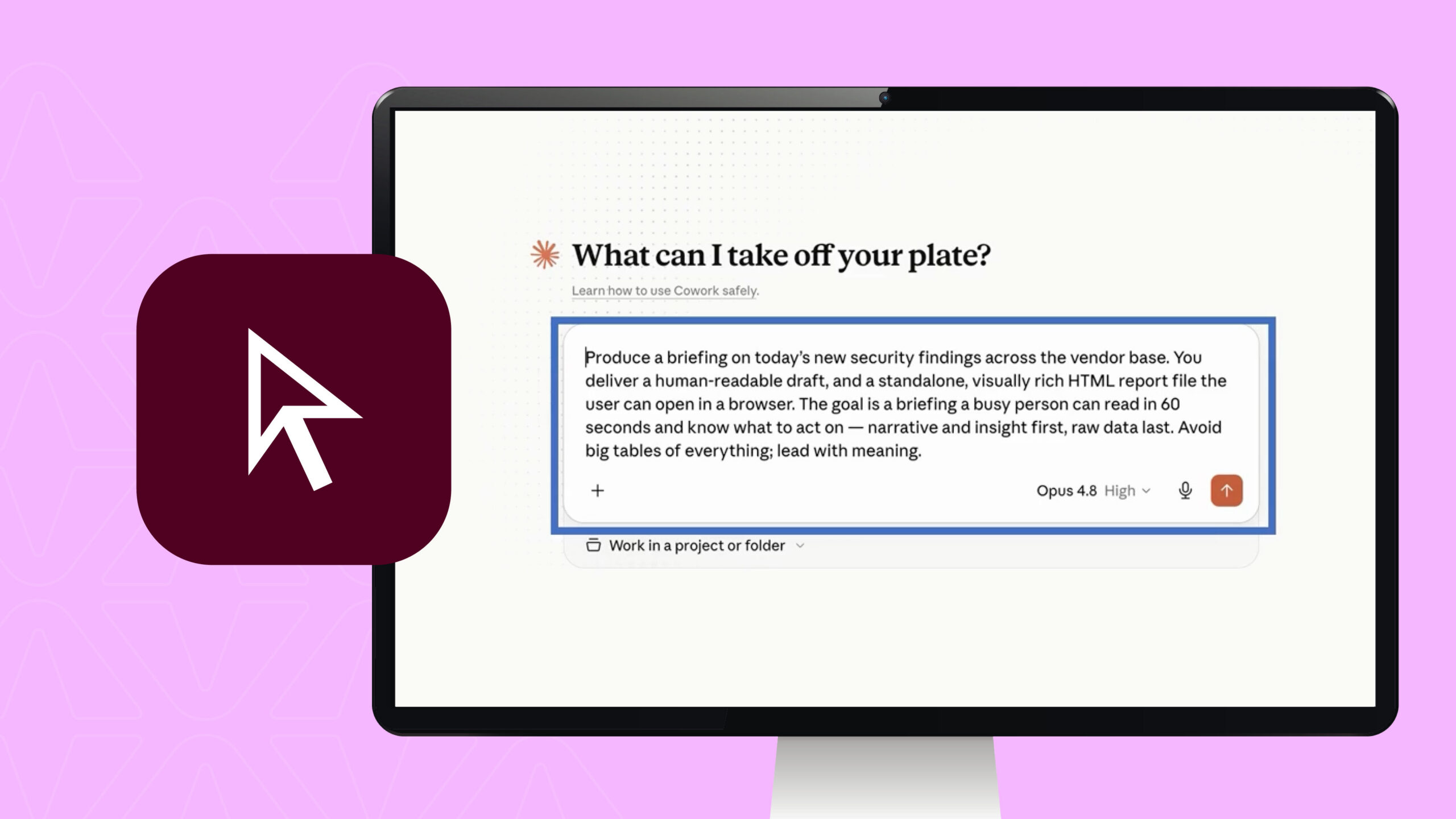
It’s now possible to create powerful third party risk management workflows right in Claude using security scorecards data and the new Titan AI MCP connector. Let’s take a look. So you can see I’m here in Claude desktop right here in co work. First thing I’m gonna do is click on my name in the bottom left hand corner, go into settings. I’m in settings here. I’m gonna go into connectors, make sure I’ve got the Titan AI connector installed and running. It looks good, so I’m good to go. Okay. So here’s my chat. I’m gonna put in this prompt. Produce a briefing on today’s new security findings across the vendor base. You deliver a human readable draft and a standalone, visually rich HTML report file the user can open in a browser. The goal is a briefing a busy person can read in sixty seconds and know what to act on Narrative and insight first, raw data last. Avoid big tables of everything, lead with meaning. So I’m gonna submit that prompt, and it does its thing. And now it says, I’ll pull today’s findings. Let me delegate the full paginated aggregation to a sub agent to keep this efficient. Keeps syncing, and then it says the data’s in. Here’s the picture, then I’ll build the report. So it builds the report. You can see it’s called vendor based security briefing. So as a like, for example, I’m a CISO. This is my vendor based security briefing for the week. You could see it gives me a description and executive summary, but I’m not even gonna look at this because I’m gonna keep scrolling down and I’m gonna see vendor security briefing right here. It’s created an HTML dashboard. I can see it by clicking on show in folder. It’ll open up my finder. I’m gonna click on the HTML file and here is my dashboard for the week. So it’s beautifully formatted. It gives me the live data right now, things I need to know, and it cuts through the noise. Matter of fact, I can scroll down here to get a sixty second read that gives me an executive summary. These are the headlines for today, for this week. It tells me what to act on now. So in this case, number one, triage the actively exploited flaws, focus the top three focus on the top three vendors, and isolate I c ICS and some VMware exposure. I can see my daily high severity findings across my supply chain, the worst affected vendors, actively exploited kevs, like what are the kevs that are actually impacting my supply chain, and exposure themes as well. So when you put Claude and SecurityScorecard together, you really kinda get an AI operating system for third party risk management. If you’d like to get access to the new Titan AI MCP connector, just contact your SecurityScorecard representative.
Claude + SecurityScorecard: An AI Operating System for TPRM

It’s now possible to build powerful third-party risk management workflows right inside Claude, using SecurityScorecard data and the new TITAN AI MCP connector. Here’s a walkthrough.

Step 1: Confirm the connector is installed

Starting in Claude Desktop (Cowork), click your name in the bottom-left corner and go to Settings, then Connectors. Confirm the TITAN AI connector is installed and running.

Step 2: Submit the prompt

In the chat, enter the following prompt:

“Produce a briefing on today’s new security findings across the vendor base. Deliver a human-readable draft and a standalone, visually rich HTML report file the user can open in a browser. The goal is a briefing a busy person can read in sixty seconds and know what to act on — narrative and insight first, raw data last. Avoid big tables of everything; lead with meaning.”

Claude responds: “I’ll pull today’s findings. Let me delegate the full paginated aggregation to a sub-agent to keep this efficient.” It syncs the data, then confirms: “The data’s in. Here’s the picture.” Then it builds the report.

Step 3: Review the briefing

The output is titled “Vendor Base Security Briefing.” For a CISO, this becomes a weekly vendor security briefing — complete with a description and executive summary.

Scrolling further down surfaces the real deliverable: an HTML dashboard. Clicking Show in Folder opens Finder, where opening the HTML file reveals a fully formatted, live dashboard for the week that cuts through the noise.

Step 4: The sixty-second read

The dashboard leads with an executive summary — the week’s headlines — and tells you exactly what to act on now. In this example:

  1. Triage the actively exploited flaws
  2. Focus on the top three vendors
  3. Isolate ICS and VMware exposure

From there, the dashboard shows:

  • Daily high-severity findings across the supply chain
  • The worst-affected vendors
  • Actively exploited KEVs (known exploited vulnerabilities) impacting the supply chain
  • Exposure themes

The takeaway

Put Claude and SecurityScorecard together, and you get an AI operating system for third-party risk management.

To get access to the new TITAN AI MCP connector, contact your SecurityScorecard representative.