Driftnet Tip: Don’t Overlook the Summary Page
Hi everyone, Gilad here with another quick tip for threat hunters using Driftnet: something nifty but commonly overlooked, the summary page.
Why Threat Hunters Underrate the Summary Page
Threat hunters and researchers tend to look at summary pages as a dashboard a nice view of things, but not something you can really use for data. You’d rather see it as a table and go straight into the artifacts, the dataset itself.
A summary page is nice when you’re presenting to your board or to colleagues, but for hunting it can seem less useful. I felt the same way until I found a feature of Driftnet’s summary page I don’t want you to overlook. I missed it at first, and now I use it to the best of my knowledge.
What the Summary Page Gives You
The summary page has different tabs presenting different types of information, including:
- Hosts
- IPs
- Geolocations
Example: Visible SMB Protocols
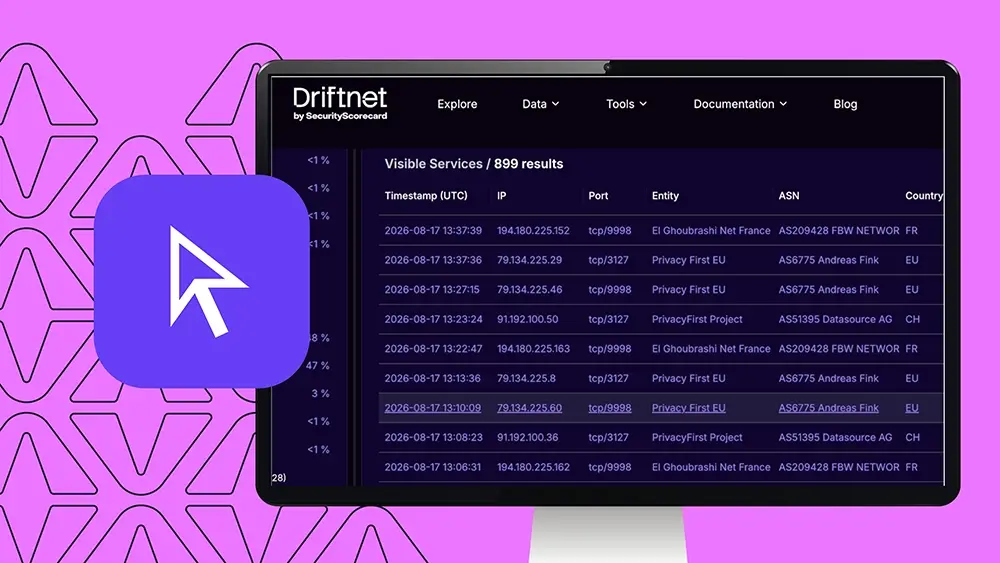
For this demonstration, I pulled all the visible SMB protocols Driftnet has seen in the last three days.
SMB protocols are highly sought after by threat actors. They’re commonly misconfigured and not necessarily meant to be exposed to the internet, so threat actors will try to use them to get into your infrastructure. This shows up on OT environments, end-of-life devices, and other systems that are vulnerable and shouldn’t be internet-facing but often are.
To those familiar with SMB: it doesn’t usually carry a domain name or a TLS certificate. But that information is visible on the summary page. So what are these domains and subject certificates showing up here? They’re TLS certificate leaf data.
Where This Data Actually Comes From
When you dive into Visible Services and look specifically at the ports and IPs presenting the SMB service, you’ll see there’s no host information, no domain name, and no TLS certificate there.
So where is Driftnet getting this from? These are services sitting on the same IP, sharing that IP with the SMB service.
This doesn’t always mean they’re related. Many IP addresses sit in shared hosting environments where a single IP has hundreds, if not thousands, of services running at once used by different operators running different operations, with the IP just acting as the gateway to externalize their services to the internet.
Why This Matters for Hunting
If you’re examining your footprint and filtering for SMB services visible from it, the Visible Services page will show you the IP and port the service is presented on. But the summary page also shows you the domains and certificates co-hosted on those IPs a useful hint as to what those specific IPs are serving and what they’re used for.
Example scenario: Say you detect a certificate used in your OT environment (which isn’t supposed to be exposed to the internet), and you also see a domain name that’s supposed to be internal. If both are presented on an IP within your footprint that also serves an SMB protocol, that’s a major hint that your OT environment might have accidentally been exposed to the internet.
The summary page empowers you here because it gives you information not just on the specific services you pulled, but on their neighbors too.
Best Practice: Start With the Summary Page
This is really useful for hunting, because you might spot these connections on the summary page first. I’ve made it my best practice to always start there and see what artifacts I can find. Each one can be a lead that helps me dive deeper into the data and find artifacts to use as filters positive or negative since some of them are noise I’ll want to filter out.
Think of the summary page as a bird’s-eye view, and the artifacts you pick from it as different lenses to focus on the information later, when you dive into Visible Services and the dataset itself.
Try It Yourself
That’s what I wanted to show you today: the summary page. I hope you’ll use it wisely or possibly even better than I do.
Thank you for listening, and good luck out there!