This walkthrough covers how to score and analyze a questionnaire or assessment inside the TITAN platform.
The Vendor Directory and Templates
The vendor directory houses both high-level and detailed information about your vendor ecosystem. Templates are the centralized location where scoring and analysis take place — this is also where you set the scoring criteria.
Step 1: Enable Risk Scoring
Open an active assessment or template and hit Edit to enable risk scoring. Risk scoring helps identify which responses pass or fail on multiple-select questions.
- You can set multiple risk metrics, each with its own scoring and weighting for pass and fail responses
- This ensures the risk level is appropriately determined based on the vendor’s actual responses
Step 2: Enable LLM Evaluations
LLM evaluations can be split into two types:
- Policy check: measures the vendor’s answer against your policy requirements
- Evidence check: confirms the vendor’s answer is actually supported by evidence uploaded to their profile or alongside the assessment
Setting risk determination at the template level means that once a supplier completes and submits an assessment, you don’t need to spend time manually reviewing responses to reach a risk conclusion. The result is a questionnaire health score and a risk score generated automatically alongside the assessment.
Step 3: Kick Off the Assessment
Scoring and questionnaire analysis tie directly into how an assessment gets sent. To kick off a new assessment for a supplier, select the vendor, select the template, pick a due date, and hit save. The questionnaire is now ready to send to the supplier.
Step 4: Prefill from Existing Documentation
If you already have documentation collected from the supplier — or expect the supplier won’t respond as quickly as you’d like — you can pull documents from the vendor’s profile to prefill the questionnaire automatically.
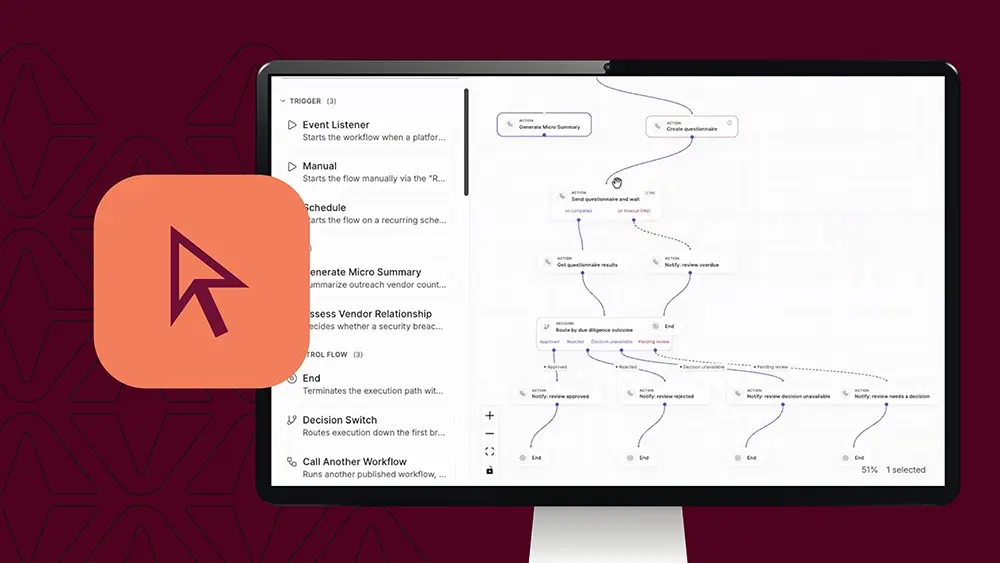
This can also be tied into automated workflows to send an assessment when needed, collect evidence and information, and run the analysis once the prefill is complete.
Prefill runs quickly — in this example, it finishes in moments, though a completed view is shown separately here for reference. Once the prefill is done and the vendor has responded, the assessment is toggled as Needs Review.
Step 5: Review a Completed Assessment
A “Needs Review” status leads into reviewing questionnaire health — surfacing items or issues flagged as not aligning with your policies or controls, which you may need to address with the supplier.
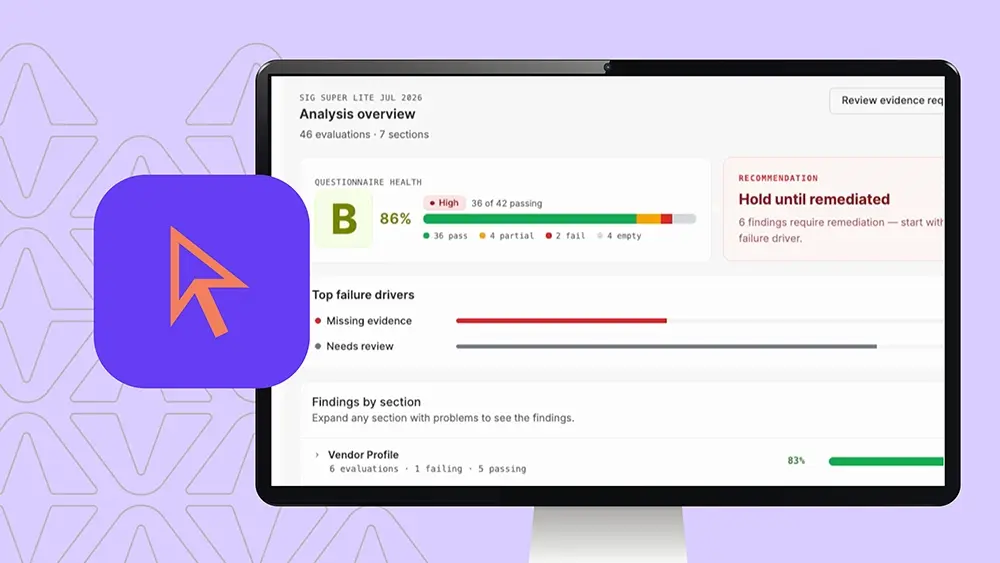
Opening a completed assessment lets you view it, review the answers, see which passed or failed, and run the analysis to generate the health score.
In this example, based on the criteria set at the template level:
- 36 answers passed
- 2 answers failed
- 4 answers were partial
- 4 answers were empty
Step 6: Drill Into the Details
From the results view, you can drill into each section to better understand why a given answer failed, passed, or received a partial response.