Rule Builder Agent: Automating Alerts in SecurityScorecard
Today we’re going over the Rule Builder agent within the SecurityScorecard platform one of a multitude of agents available to help automate and speed up daily tasks in support of self-monitoring and third-party risk management.
Why Automated Alerting Matters
Your team needs to know the moment a vendor drops below a scoring threshold, a specific issue or risk is identified, or a breach event takes place. That early warning helps your team be proactive instead of reactive against risk.
Manually setting up alerts and triggers can be tedious, and there’s a real risk of duplication that’s where the AI agent excels. This walkthrough shows how to create an alert via the Rule Builder agent, but it’s meant as a framework you can use to build any rule or alert you need.
Step 1: Open the Rule Builder Agent
Navigate to the sparkly circle in the bottom right-hand corner to view and browse all available agents, then select the Rule Builder agent.
Step 2: Choose What to Monitor
The agent greets you with a few potential starting options for creating alerts. These aren’t the only options available you can create an alert over any data point in the platform.
In this example, the request is to create a breach alert for any vendors being monitored, in order to be notified the moment an incident takes place and take the proper next steps.
Step 3: Let the Agent Check for Duplicates
After asking the agent to create a breach monitoring alert, it works on the request by first analyzing existing rules in the platform instance to avoid duplication. It confirms there are no existing alerts of this type, then asks for a few more details to make sure the alert fits the specific need.
Step 4: Define the Alert Scope and Output
The request: apply the monitoring alert to all followed vendors, and receive both an email alert and a report.
This gives the agent guidance on what to monitor and what the output should look like. The agent asks for one more clarification in this case, requesting a detailed report. This is a key strength of the alerting agent: it catches gaps in the alert setup to make sure the final alert is meaningful and configured correctly.
Step 5: Confirm Naming and Branding
The agent asks for a final confirmation on the breach name in this case, “Breach Monitoring All Vendors” and a request to email with SecurityScorecard branding.
Step 6: Review and Create the Alert
The agent confirms and reviews the alert, showing the end result for one last check to ensure everything is set up correctly. Once confirmed, the agent creates the alert in the platform instance.
Step 7: Verify in Rule Builder
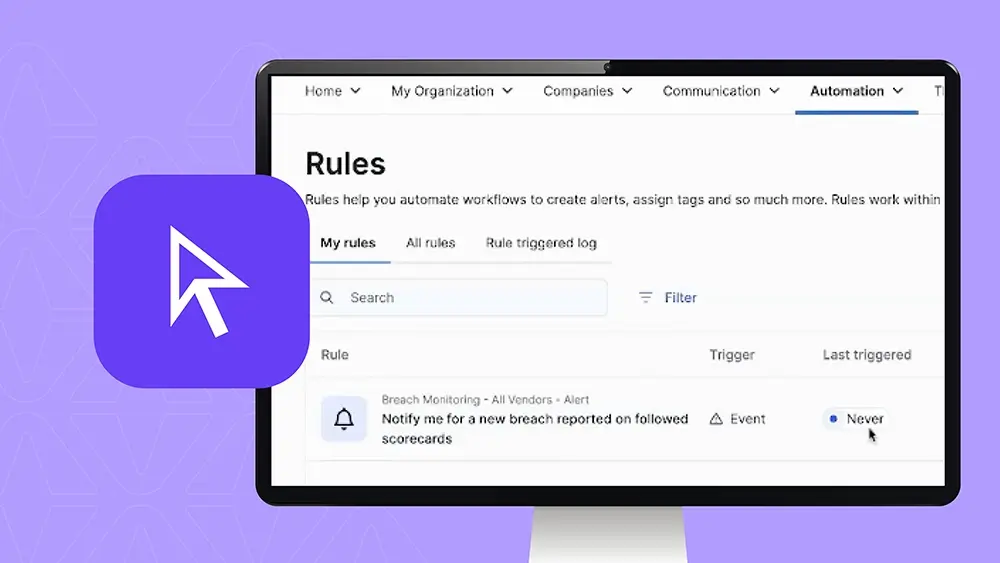
Navigate to Automation → Rule Builder to see the newly created alert. It hasn’t been triggered yet, but once it is, it will move to a successful trigger state.
If you have any questions, please reach out to the SecurityScorecard team we’re happy to support or answer any questions you may have. Thank you.